
There are several reasons you might want to reduce the clock of your GPU, whether it is the primary or memory clock.
This guide will show you exactly how to underclock your graphics card.
If you want to use your computer as a more relaxed tool for browsing the internet or maybe enjoying multimedia like movies and music, then underclocking can be a beneficial choice.
You might look to underclock your GPU if you have previously overclocked it and are either disappointed with the results or simply don’t need the additional power anymore.
Another excellent reason to underclock your GPU is if warmer summer months are approaching and you’re wary of the additional heat that might be introduced to your PC case. There are other ways to reduce the temperature of the PC, but underclocking your GPU is a dependable way to do it.
The reason for this is straightforward: if you lower the core clock and/or the memory clock of your GPU, it will need less power. If it draws less electricity from the PSU, that means it’s also generating less heat.

Naturally, decreased heat means a diminished chance of the GPU overheating and failing down on you.
This could be another reason why you’re interested in underclocking to extend your graphics card longevity. This is especially beneficial if you’re looking to obtain a new GPU but are waiting for the release of a model you’re interested in.
With a lighter clock and less power being drawn, you should notice that your GPU fans are operating at a reduced speed and are silent.
If you intend to step away from gaming or other GPU-intensive tasks, you may be bothered by the noisy fan sound. Underclocking your GPU should keep that in check.
Without further delay, let’s examine the thorough procedure of how to underclock your GPU.
Table of ContentsShow
Step 1 – Prepare Your Tools

Fortunately, the technology has progressed enough that you no longer need to enter BIOS and mess with the configurations. Now, you can download a software solution and proceed with that.
Note: there are multiple diverse programs that can be employed to reduce the speed of your GPU, such as EVGA Precision XOC, NZXT Cam, and ASUS GPU Tweak. In this case, we will focus on the present top and simplest option to utilize: MSI Afterburner.
Unlike overclocking, you don’t need extra software for benchmarking as you’re trying to reduce clock speeds and don’t need to measure FPS. Even so, it would be perfect to have some software for stress testing, as underclocking can make your PC function differently than before. Yes, it is possible to underclock too much.
As far as stress testing tools go, we recommend 3DMark, PassMark, or Heaven Unigine.
Step 2 – Lower Your Core Clock Speed
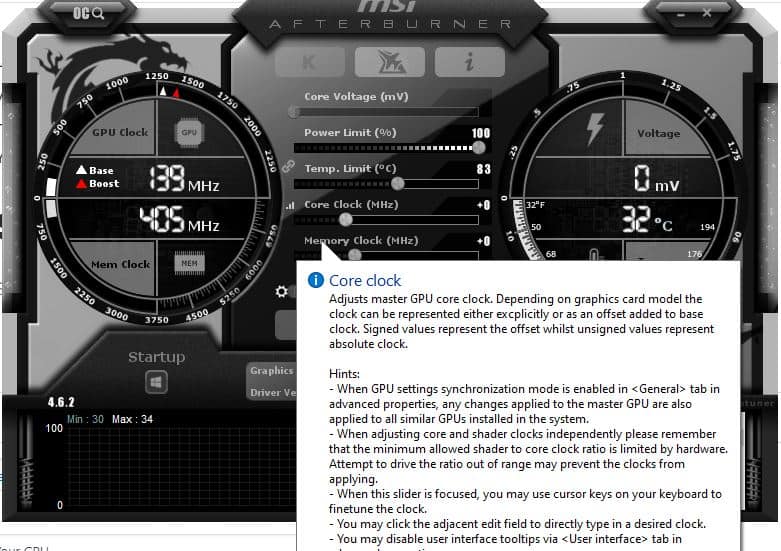
After launching MSI Afterburner, you will be greeted by a few options. You should pay close attention to the original position of the slider, as that will be the standard value for your graphics card. However, there is also a reset button that can help you out if you mess up or forget the values you have altered.
To underclock, you need to either move the core clock slider to the left to its original place (the ‘+0’ position) or move it even further to get it lower than its base speed. This will depend on your goal for underclocking your graphics card.
Once you have the core clock at your preferred level, click “Apply”, and you can close the application if you don’t want to modify anything further. Be sure to toggle the tiny Windows icon to ensure that the settings will apply after every startup.
Step 3 – Underclock The Memory Clock (Optional)

You only need to perform this step if you have previously overclocked the memory clock. If you have only modified the core clock or haven’t overclocked anything and want to reduce the speed, you should leave the memory clock at its initial value.
There aren’t many additional benefits of going below the default clock, while the main advantage is to retain the outstanding default clock.
Likewise, you should be careful when underclocking memory. This setting is a bit more sensitive if you’re going below the factory clock and can cause unreliability.
GPU Underclock Is Not The Same As GPU Undervolt
It’s crucial to mention that these two are distinct processes, albeit related.
Reducing GPU power consumption can be achieved by underclocking, which decreases clock speeds. Undervolting, on the other hand, lowers the incoming voltage without affecting the card’s essential and memory clock.
You can use both, but we have to warn you that undervolting is much more likely to lead to system instability than underclocking. If you know what you’re doing, you can reduce the power consumption while still somewhat maintaining the performance. As this is rather intricate to pull off without causing instability, we don’t recommend it.
Who Should Underclock Their GPU
The reasons for underclocking are abundant, but the benefits are simple.
If you believe your GPU is overheating and other solutions haven’t worked, you should try to underclock it to see if that fixes the problem. This can occur as the graphics card becomes aged and the thermal paste deteriorates and has issues conducting heat.
Another reason is that games have evolved past your GPU’s capability of effectively displaying them, despite your utmost efforts to optimize them and work past stuttering.
You might be surprised by how insufficient ventilation in the case can cause the GPU to overheat, as well as ambient temperatures. If you live in areas with clearly defined seasonal changes and where room temperature can vary around your PC, you might be affected by overheating issues. Underclocking can be a beneficial tool if you anticipate hotter weather approaching.
Finally, and this may be the most discouraging reason, it’s possible that your graphics card has had its day. It might have served you well for years, but after all that time struggling to keep the latest games running at a high resolution, it might be time to upgrade.
If you’re aware that a fresh series of GPUs is coming and can hold on a while longer and accept that your PC is now primarily a web-browsing machine, underclocking could be a feasible option.


