
Getting a new graphics card is like Christmas for any PC gamer. It marks the end of stuttering and low FPS, and you will finally be able to game at exceptionally high resolutions with advanced visuals. But do you know how to install a graphics card?
Although a new graphics card is a wonderful addition, the process of plugging it into your PC can look intimidating, and that’s what we’re here to describe. Luckily, other than a RAM upgrade, the GPU upgrade is probably the simplest one.
However, like anything else inside your computer, you need to be cautious when removing your old graphics card and installing a fresh one. Don’t worry, we’re here to guide you through the process.
Table of ContentsShow
Step 0 – Things To Consider Before Buying A Card

You might be under the impression that your PC doesn’t have any prerequisites for a new graphics card. Although that’s largely correct, there is one vital thing to keep in mind: you should be well aware of what PSU you have, as well as which power connector cables are provided with it.
Depending on the power connector cables that come with the PSU, you might need to use adapters, so conduct your research in advance. Something to keep in mind when checking out contemporary graphics cards is that their power usage should be in the 40-50% range of your PSU’s total capability.
Additionally, if you’re not explicitly upgrading but rather adding another GPU, either through SLI, Crossfire, or NVLink, you will have to consider the extra power consumption.
One aspect that is often overlooked is the importance of checking whether you have adequate space in your case for your new graphics card.
It’s highly probable that your new GPU will be a different size from your current one. Some high-end graphics cards are approximately as big as a medium-sized cat, so it’s likely that your existing case won’t be able to accommodate it.
This is a completely distinct issue. If this applies to you, you might need to get a separate case which will lead to additional work, as you will essentially have to rebuild your entire PC.
Step 1 – Before Turning Off Your PC

If you have purchased a new card from an alternative manufacturer (AMD or NVIDIA) than the one you already own, you need to completely remove all of the drivers from your PC before installing the updated graphics card.
The next logical step would be to uninstall all the drivers via the Control Panel, but some data is buried deep in the registry and other areas. As such, it’s best to install Display Driver Uninstaller and run it in Safe Mode. This is a free and simple software, and it will accelerate the process considerably.
Although suggested, this step isn’t required if you’re upgrading your graphics card to one from the same manufacturer, but it’s essential if you’re switching from NVIDIA to AMD or vice versa.
Step 2 – Discharge Static

This is a minor but essential step that can save you a lot of trouble and prevent things from going wrong. Before you do this, make sure to disconnect all of the cables from the back and front of your PC.
After that, turn off the power supply and discharge the static by holding down the power button for about 10 to 15 seconds. Subsequently you should be fully ready.
Although the chances of your new GPU being fried are slim, it’s still essential to discharge the static to be on the safe side.
Step 3 – Remove The Old Graphics Card
The first thing to do here is to remove the power connectors. Once you have done that, unscrew the screws holding the GPU to the backplate. Then you only need to push down the retaining clip on the PCIe socket and carefully lift/pull your old card towards you.
Sometimes, you may think that being cautious is unnecessary, but you never know how beneficial your prior visual card could be.
Step 4 – Insert The New Graphics Card
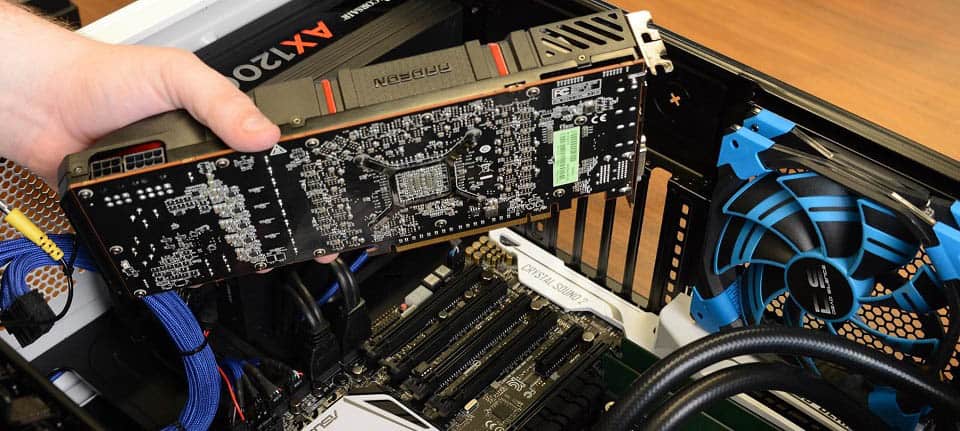
This step is essentially the previous step in reverse, but you still need to be careful.
When positioning the card, there shouldn’t be significant resistance. If there is, verify that there are no cables in the way or anything else that can physically prevent you from inserting the card.
When you have moved the card all the way down, make sure that the retaining lid or the security lock is in the correct position by flicking it back up. When the GPU is securely set into its PCI-E slot, you should hear a clear and satisfying “click.”
Once the new card is securely in its designated PCIe slot, insert the power cable. The connector will only connect in one way, so if you’re experiencing trouble, you might want to try it the other way. Once the cable is in place, make sure it isn’t obstructing the GPU’s fan(s).
All that remains is to put back the screws and proceed to the following step.
Step 5 – Reconnect The Cables And Boot Up Your Computer
All that’s left now is to connect all the vital cables, boot up your computer and bask in the glory of your new graphics card, enjoying the incredible 60 FPS+ experience.
If you got a recent graphic card, you may be asking why the display is not crisp. The final stage is installing suitable software.
Many contemporary graphics cards will come complete with auto-installing drivers, but you should still check your manufacturer’s website to make sure you have the drivers’ most recent version.
After you have installed the most recent drivers for your new graphics card, it’s game time.


